
How to Get Notified When a Website Changes
Get notified when a website changes: watch one piece of text on any page, set a rule that skips the noise, and get the alert on Telegram, Discord or email.
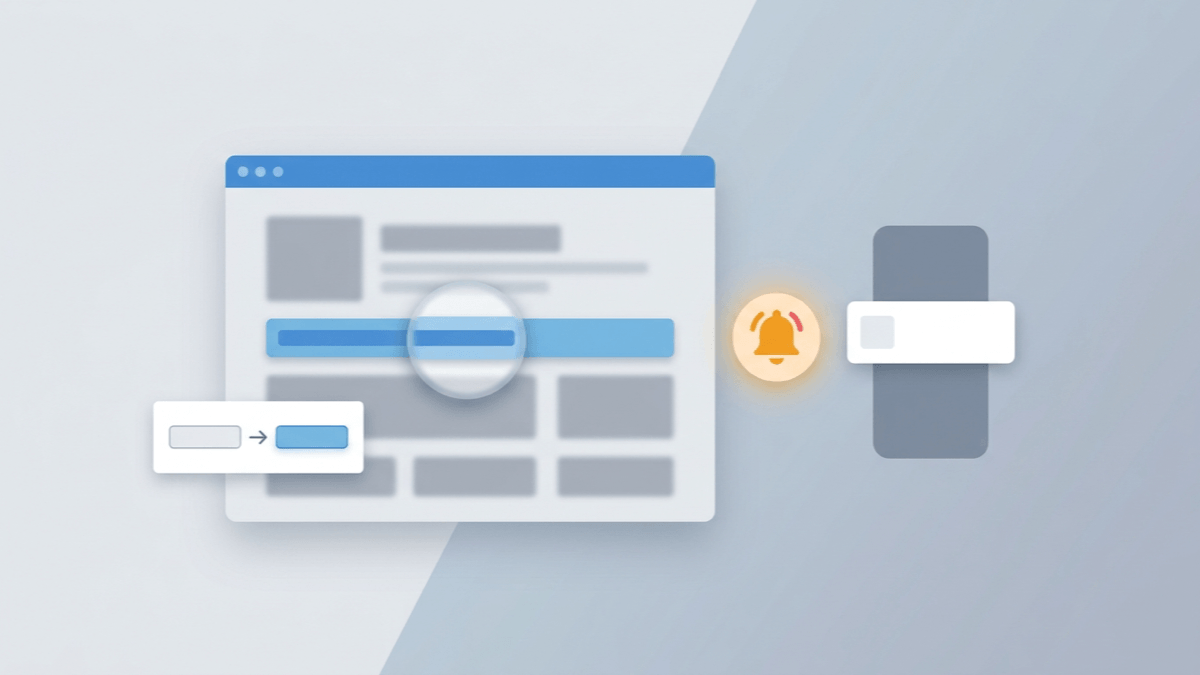
The pages you care about change without warning. A company opens the role you've been waiting for, an application portal switches your status from "Under review" to "Decision available", a "coming soon" notice turns into a sign-up form. The usual way to catch it is to refresh the page by hand, and the day it finally changes tends to be the day you didn't look. This guide shows you how to get notified when a website changes, for any text on any page, without refreshing and without a stream of false alarms. You'll learn which part of a page to watch, which alert rule fires only on the change you care about, and how to set up one complete example: an alert for a new job opening on a company's careers page.
The short answer: don't watch the whole page. Pick the one element that holds the answer, such as a job list, a status line or a date, and track it with AlarmBot, a free Chrome extension. Add a text rule like "Contains: Designer" if only one kind of change matters. AlarmBot checks as often as every 20 minutes and sends you the old and the new text, with a link to the page, by Telegram, Discord, email or browser push.
What You'll Learn
- Why whole-page monitoring sends false alerts, and how watching one element stops them
- Which text rule to pick, and the one-word trap that makes "available" match "Unavailable"
- A complete recipe for new job postings on any company's careers page
- How to watch pages that need your login without handing over a password
- How often a monitor should check, and why AlarmBot's free plan has no monthly check limit
Watch the Element, Not the Page
A web page is full of parts that change on their own. Banners rotate, recommendation blocks reshuffle, "posted 5 minutes ago" timestamps tick forward and cookie notices come and go. A monitor that compares the whole page counts every one of those as a change, and after a week of alerts about nothing, most people stop reading them.
The fix is to watch less. AlarmBot doesn't compare whole pages: you click one element, and on every check AlarmBot reads that element and nothing else. A new banner or a reshuffled sidebar outside it can't trigger an alert, because AlarmBot isn't looking there.
Three rules make the choice easy:
- Pick the smallest element that holds the answer. The status line, not the whole account page. The "Last updated" date, not the whole policy. The list of openings for one team, not the entire careers site.
- Skip elements that change by themselves. Relative timestamps, view counters, countdowns and rotating headlines change on every visit and will alert you for nothing.
- Prefer an element that is there in both states. A status line that reads "Closed" today and "Open" tomorrow gives you a clean before-and-after alert. If the element you picked disappears from the page altogether, AlarmBot marks the track as an error and tells you on your notification channels, so a track never goes quiet without you knowing.
Takeaway: if you can point at the exact words that will change, that's your element.
Pick a Rule That Fires on the Change You Want
Without a rule, AlarmBot alerts you whenever the tracked text changes. For a small element like a status line, that is often all you need. When only one kind of change matters, add a text rule:
| Rule | Alerts on a change when the new text… | Example |
|---|---|---|
| Contains | …includes your word or phrase | Contains: Remote on a job list |
| Doesn't contain | …no longer includes it | Doesn't contain: Closed on a course status |
| Equals | …is exactly your text | Equals: Accepted on an application status |
| Doesn't equal | …is anything other than your text | Doesn't equal: Under review |
Two details decide whether a rule behaves the way you expect.
"Contains" matches part of the text. "Unavailable" and "Not available" both contain the word "available", so "Contains: available" fires on the very text you were hoping to avoid. Pick wording that appears only in the state you want, copied exactly as the page writes it. If a page switches between "Unavailable" and "Available", "Equals: Available" says what you mean.
Every matching change alerts, not just the first. The rule is checked each time the text changes. With "Contains: Open", a course line that moves from "Open (3 seats)" to "Open (2 seats)" alerts you again. If you only want the switch itself, track the element that holds the status word on its own, not the line with the seat count.
Takeaway: write the rule in the page's own words, and read it against both versions of the text before you rely on it.
Worked Example: Get Notified When a Company Posts a New Job
If you want to work at one particular company, the page that matters is that company's own careers page. Watching it is how you set up job alerts for a specific company, and careers pages are among the pages we watch with AlarmBot ourselves.
Speed pays off here. Huntr's analysis of nearly 2 million job applications(opens in a new tab) found that "applying early correlates to much higher interview rates." An alert on the day a role opens gives you that early start.
Step 1: Open the careers page and narrow it down
Install the AlarmBot Chrome extension and sign in with a free account, using email or Google. Then open the company's careers page. If it lets you filter by team, location or job type, apply the filters first, so the page shows only the roles you would apply for. AlarmBot reopens the page at its address on every check, so the filters stick when they show up in the address bar. If they don't, track the team's section on the unfiltered page instead.
Step 2: Click the element that lists the openings
Open AlarmBot and use the Visual Selector to click the part of the page that changes when a role is posted. Check the text AlarmBot captured, then create the track. Two good choices:
- The list of openings for the team or location you filtered to. A new title in the list is a new job.
- The job count, if the page shows one, like "12 open positions". It changes whenever a role is added or removed, and it's short, so the alert stays easy to read.
Leave out the page header and any "featured jobs" carousel. Both can change without a new posting.
If a careers site has separate pages per team or city, track one list for each one you care about rather than the main page. Your 20 free tracks leave room for several.
Step 3: Choose how often to check
Every 20 minutes is the fastest free setting, and for a role you really want, it's the one to pick. A careers page you are only browsing out of curiosity can be checked less often.
Step 4: Add a rule, or leave it open
- Any new role: no rule. Every change to the list or the count alerts you, new postings and removals alike.
- One kind of role: "Contains" with a word from the title you are after, such as
Designer,Data,BerlinorRemote. While that word stays on the list, later changes to the list alert you too, which on a careers page usually means another opening worth a look.
Step 5: Send the alert to your phone
Connect Telegram or Discord to your AlarmBot account, or use email or browser push. The free plan keeps two channels active at once (browser push counts as one), so Telegram plus browser push is a good pair. The Telegram and Discord setup guide walks through both.
What the alert looks like
When the list changes, the alert shows the old text and the new text, with a link to the careers page. Every earlier version stays in the track's history in your dashboard, each with its date, for 90 days, so you can see exactly when a role went up or came down.
| New job on a careers page | |
|---|---|
| Element | The filtered list of openings, or the "open positions" count |
| Rule | None for any new role; "Contains" with a title word for one kind |
| Check | Every 20 minutes |
| Alert | Telegram or Discord, plus browser push |
Pages That Need Your Login
Application portals, student systems, member-only listings and internal job boards all sit behind a sign-in. A cloud monitor checks from its own servers, so to get past the login, some of them ask for your username and password and type them in before each check.
AlarmBot doesn't need them. Checks run in your own Chrome, so if you are signed in to the site, AlarmBot's check uses that session. There is no extra setup, and your logins, cookies and passwords never leave your browser. If the site signs you out and the element you track stops showing, the track is marked as an error and you're told on your notification channels, so you know to sign back in.
Takeaway: if you can see the page while you're signed in, AlarmBot can watch it.
How Often to Monitor a Website for Changes
Check too rarely and you hear about a change hours late. Check too often and the site starts treating you like a bot. Site owners set rate limiting rules that "restrict how many requests a visitor can make", as Cloudflare's documentation on error 1015(opens in a new tab) puts it, and a monitor that reloads a page every minute is the kind of traffic those rules exist to stop.
AlarmBot's fastest free check is every 20 minutes, and that pace is deliberate: fast enough to catch a new posting or a status change the same morning, slow enough to keep the site from blocking you. Ten pages on one site, checked every minute, would send it 600 requests an hour from your IP.
There is no monthly check limit either. Many cloud monitors count each check against a monthly allowance, and one page checked every hour uses 720 checks in 30 days, more than some free plans allow for the whole month. A careers page or an application portal is something you watch for weeks, and with AlarmBot a 20-minute check on day 29 runs exactly like it did on day one.
Your tracks live on your account, not in one browser. Any computer signed in to AlarmBot, at work or at home, shares the checking, and each due check goes to one browser at a time, so two open browsers never double-check the same track.
Takeaway: for anything you would act on the same day, set 20 minutes and leave it.
More Pages Worth Watching
The same element-plus-rule approach works on almost any page that changes over hours or days:
- Application and result status. Track the status line in a university, visa or exam portal, and the alert arrives at the next check after it stops saying "Under review".
- "Coming soon" pages. Track the notice on a product, course or registration page, and a "Doesn't contain" rule with its "coming soon" wording alerts you when it goes live.
- Policies and terms. The "Last updated" line beats the whole document: a new date there is your signal that the text was revised.
- Rental listings. Run a filtered search on a letting agent's or a classifieds site, sort it newest first, then track the result count or the top listing's title.
- Software versions and documents. Track the version number on a download page or the revision date on an official form.
- Course waitlists. To get notified when a class opens up, track the section's status word and use "Doesn't contain: Closed".
For stock badges and buy buttons, the back-in-stock alerts guide has the rules that work. And when the text is a price, AlarmBot reads it as a number, so you can alert on a drop below your target: see tracking prices on any website.
Common Questions
How do I get notified when a website changes?
Use a monitor that checks the page for you, point it at the part of the page that will change, and choose where the alert goes. With AlarmBot, a free Chrome extension, you click the element, choose how often to check (as often as every 20 minutes) and get the old and new text by Telegram, Discord, email or browser push.
Can I get an alert when specific text appears on a web page?
Yes. Track the element where the text will appear and add a "Contains" rule with the words you are waiting for. Contains matches part of the text, so pick wording that appears only in the state you want: "Contains: available" also matches "Unavailable".
Can AlarmBot watch a page that needs a login?
Yes. AlarmBot checks in your own Chrome, so if you are signed in to the site, the check uses that session. There is nothing extra to set up, and your logins, cookies and passwords never leave your browser.
How do I stop false alerts from a page monitor?
Watch the smallest element that holds the answer instead of the whole page, skip elements that change on their own (timestamps, counters, rotating banners) and add a text rule so only the change you care about alerts you.
Can I see what the text said before it changed?
Yes. Every change alert shows the old text and the new text, and the track's history in your AlarmBot dashboard lists each earlier version with its date for 90 days.
What happens if the site changes its layout?
If AlarmBot can no longer find the element, the track is marked as an error and you are alerted on your notification channels. Reselect lets you pick the element again in one click and keeps your history.
Is AlarmBot free?
Yes. The free plan covers 20 tracks checked as often as every 20 minutes, with no monthly check limit and no credit card.
One Element, One Rule, One Alert
Every page change you care about comes down to a few words changing in one spot. Point AlarmBot at that spot, write the rule in the page's own words and send the alert to your phone. The next time the careers page, the portal or the "coming soon" notice changes, you hear about it at the next check instead of on your next refresh.